
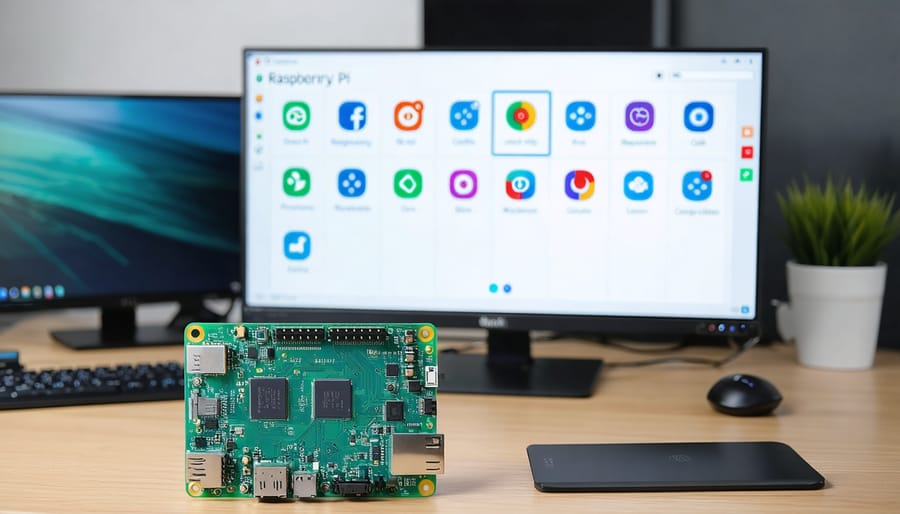
Transform your Raspberry Pi 4 Model B into a versatile computing powerhouse by choosing the perfect operating system for your needs. From the beginner-friendly Raspberry Pi OS (formerly Raspbian) to advanced options like Ubuntu Server and RetroPie, the Pi 4’s powerful quad-core processor and up to 8GB RAM support a diverse ecosystem of operating systems. Whether you’re building a home media center, developing IoT projects, or creating a portable gaming console, the right OS choice dramatically impacts your Pi’s performance and capabilities. Master your Pi experience by understanding the key differences between available operating systems, their specific use cases, and optimization techniques that unlock your device’s full potential. This guide explores the most popular and practical OS options, complete with installation procedures, performance comparisons, and expert recommendations tailored to different project requirements.
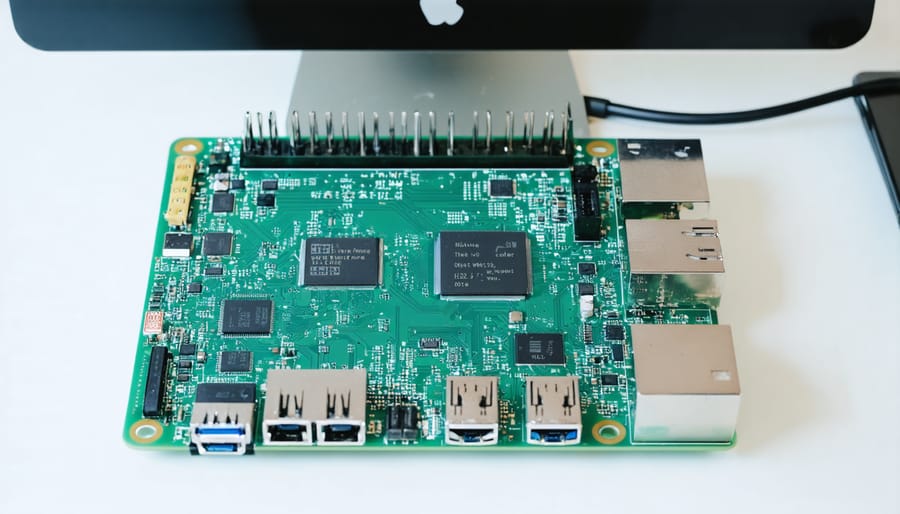
Popular Operating Systems for Raspberry Pi 4
Raspberry Pi OS (Previously Raspbian)
Raspberry Pi OS, formerly known as Raspbian, stands as the official and most widely-used operating system for the Raspberry Pi 4 Model B. Based on Debian Linux, this free operating system is specifically optimized for the Pi’s hardware architecture, ensuring optimal performance and compatibility.
The operating system comes in three distinct versions: Full (with recommended software), Lite (minimal, command-line only), and Desktop (without recommended software). The Full version includes essential programming tools like Python, Scratch, and Node-RED, making it perfect for educational purposes and development projects. The Desktop version provides a lighter alternative while maintaining GUI functionality, while the Lite version is ideal for servers and headless applications.
Key features include the Chromium web browser, LibreOffice suite, and various programming tools pre-installed in the Full version. The Pi-specific optimizations ensure smooth performance even with multiple applications running simultaneously. The operating system also includes the Raspberry Pi Configuration Tool, which simplifies hardware settings management and enables easy customization of system parameters.
Regular updates from the Raspberry Pi Foundation ensure security patches and performance improvements, while the extensive software repository provides access to thousands of compatible applications. The familiar desktop environment, similar to other major operating systems, makes it particularly accessible for newcomers while offering advanced features for experienced users.
For most users, Raspberry Pi OS represents the best starting point, offering a balance of ease of use, performance, and community support. Its official status means you’ll find abundant documentation, tutorials, and troubleshooting resources across the Raspberry Pi community.
Ubuntu Desktop and Server
Ubuntu offers two robust options for the Raspberry Pi 4: Ubuntu Desktop and Ubuntu Server, both optimized specifically for the Pi’s ARM architecture. Ubuntu Desktop provides a full graphical interface that transforms your Pi 4 into a capable workstation, complete with LibreOffice suite, Firefox browser, and various productivity tools. The interface is particularly smooth on the Pi 4’s more powerful hardware, making it an excellent choice for daily computing tasks.
Ubuntu Server, on the other hand, delivers a lightweight, command-line focused experience ideal for hosting services, running automation scripts, or setting up a home server. This version is particularly efficient with system resources, leaving more processing power for your server applications and services.
Both variants come with long-term support (LTS) options, ensuring security updates and stability for extended periods. The 64-bit versions take full advantage of the Pi 4’s capabilities, though 32-bit options remain available for compatibility with older software. Ubuntu’s package management system makes it easy to install additional software, and the strong community support means you’ll find plenty of resources for troubleshooting.
For best performance, it’s recommended to run Ubuntu from an SSD rather than a microSD card, especially for the Desktop version. The minimum requirements include a Raspberry Pi 4 with 4GB RAM, though 8GB is recommended for Desktop users who plan to run multiple applications simultaneously.
Specialized Operating Systems
Media Center OS Options
The Raspberry Pi 4 Model B shines as a media center, and several specialized operating systems make it easy to transform your Pi into a powerful entertainment hub. LibreELEC (Linux Entertainment Center) leads the pack with its streamlined Kodi-based interface, offering instant access to your media library and streaming services. This lightweight OS boots quickly and includes excellent hardware acceleration support for smooth 4K playback.
OSMC (Open Source Media Center) provides another compelling option, featuring a more customizable interface while maintaining the familiar Kodi foundation. Its regular updates ensure compatibility with the latest streaming add-ons and media formats, while its active community offers extensive support for troubleshooting and gaming performance optimization.
For those seeking additional features, RaspberryPi OS with Kodi installed offers the flexibility of a full desktop environment alongside media center capabilities. This setup allows you to switch between media playback and other tasks seamlessly, though it requires more system resources than dedicated media center distributions.
All these options support common media formats, network streaming, and remote control functionality, making them ideal for building a customized home theater system. The choice largely depends on whether you prefer a dedicated media player or want the versatility of additional applications alongside your media center.
Network and Server Solutions
For users looking to transform their Raspberry Pi 4 into a powerful network hub or server solution, several specialized operating systems offer robust capabilities for server applications and network management.
DietPi stands out as a lightweight, highly optimized distribution that consumes minimal system resources while providing excellent performance for server setups. Its streamlined installation process and automated software configuration tools make it perfect for both beginners and advanced users setting up file servers, web servers, or network-attached storage solutions.
OpenMediaVault (OMV) transforms your Pi 4 into a comprehensive network-attached storage system. With its user-friendly web interface, OMV makes it easy to manage storage devices, configure file sharing protocols, and monitor system performance. It supports essential services like SSH, FTP, and DLNA media streaming out of the box.
For those interested in network security, specialized distributions like Pi-hole offer network-wide ad blocking and DNS management capabilities. Additionally, OwnCloud Pi focuses on creating personal cloud storage solutions, while NextCloudPi provides a secure alternative to commercial cloud services.
These server-oriented systems typically run headless (without a display), allowing remote management through web interfaces or SSH connections, making them ideal for always-on applications while minimizing power consumption and maintenance requirements.
Desktop Alternatives
While Raspberry Pi OS is the go-to choice for many users, several compelling desktop alternatives offer unique features and experiences. Manjaro ARM stands out as a powerful option, bringing the stability and extensive package selection of Arch Linux to the Pi 4. Its rolling release model ensures you always have access to the latest software updates, and its user-friendly package manager makes system maintenance a breeze.
OpenSUSE provides another robust alternative, offering both Leap (stable) and Tumbleweed (rolling release) versions. The distribution’s YaST configuration tool makes system administration particularly straightforward, while its enterprise-grade security features appeal to more serious users.
Ubuntu MATE deserves special mention for its lightweight yet full-featured desktop environment. It’s particularly well-suited for the Pi 4’s capabilities, offering smooth performance and a familiar interface for users transitioning from traditional PCs.
For those seeking maximum performance, Alpine Linux presents an incredibly lightweight option. While it requires more technical knowledge to set up, its minimal resource usage makes it ideal for running multiple applications simultaneously on the Pi 4.
Each of these alternatives comes with its own software repositories and community support, ensuring you’re not limited in terms of available applications. Consider factors like update frequency, community size, and your comfort level with Linux when choosing between these options.
Installation and Performance Tips
Installation Methods
Installing an operating system on your Raspberry Pi 4 Model B can be accomplished through several straightforward methods. The most common approach is using the Raspberry Pi Imager, a user-friendly tool that streamlines the process significantly.
To begin, download and install the Raspberry Pi Imager on your computer. Insert a microSD card (minimum 8GB) into your computer using a card reader. Launch the Imager and click “Choose OS” to select your preferred operating system. Next, select your microSD card under “Choose Storage,” and click “Write” to begin the installation process.
Alternatively, you can use NOOBS (New Out Of Box Software), which offers a selection of operating systems to choose from during the first boot. Simply download NOOBS, extract the files to a formatted microSD card, insert it into your Pi, and follow the on-screen instructions.
For advanced users, manual image writing is possible using tools like Etcher or DD command in Linux. Download your chosen OS image file, launch your preferred imaging tool, select the image file and target microSD card, then initiate the writing process.
Regardless of the method chosen, ensure your microSD card is properly formatted before starting. Once the installation is complete, insert the card into your Raspberry Pi 4, connect the necessary peripherals, and power on the device. The first boot may take a few minutes as the operating system configures itself.
Remember to configure basic settings like language, timezone, and WiFi connection during the initial setup. It’s also recommended to update your system immediately after installation to ensure you have the latest security patches and features.
Performance Optimization
To get the most out of your Raspberry Pi 4’s operating system, implementing proper optimization techniques is crucial. Start by ensuring you meet the basic power supply requirements, as insufficient power can lead to throttling and performance issues.
One of the most effective ways to boost performance is to enable GPU memory splitting. Allocate only the necessary amount of RAM to the GPU based on your usage – for headless servers, 16MB is sufficient, while desktop environments may need 128MB or more. This adjustment can be made through the raspi-config tool.
Overclocking can significantly improve performance, but proceed with caution. The Pi 4 can safely be overclocked to 2.0 GHz under proper cooling conditions. Install a heatsink and fan to maintain stable temperatures. You can modify the config.txt file to adjust clock speeds, but start conservatively and monitor temperatures.
Storage optimization plays a crucial role in system performance. Use a high-quality Class 10 microSD card or consider booting from USB 3.0 SSD for better speed and reliability. Regular maintenance tasks like clearing package caches (sudo apt clean) and removing unused applications help maintain system responsiveness.
For desktop environments, disable unnecessary visual effects and autostart applications. Using a lightweight desktop environment like LXDE instead of PIXEL can significantly reduce resource usage. Consider using lightweight alternatives to common applications – for example, choosing Chromium over Firefox for web browsing.
Finally, implement proper swap management. While the Pi 4’s increased RAM reduces reliance on swap, setting the swappiness value to 10 (default is 60) can help prevent unnecessary swap usage and improve overall system responsiveness. This can be adjusted in the /etc/sysctl.conf file.
The Raspberry Pi 4 Model B offers an impressive array of operating system options, each catering to different user needs and project requirements. Whether you’re a beginner looking to explore Linux through Raspberry Pi OS, a media enthusiast interested in LibreELEC, or a developer seeking advanced capabilities with Ubuntu, there’s an operating system that’s right for you.
For most users, Raspberry Pi OS remains the recommended choice, offering the perfect balance of performance, ease of use, and community support. Its lightweight nature and optimization for the Pi hardware make it an excellent starting point for new users while providing enough flexibility for advanced projects.
When selecting an operating system, consider your specific needs: Will you be using your Pi for basic computing, media center applications, retro gaming, or development work? The answer will guide you to the most suitable choice. Remember that you can always experiment with different operating systems using multiple SD cards, allowing you to switch between systems without losing data.
For optimal performance, ensure your chosen operating system is 64-bit capable and properly configured for the Pi 4’s capabilities. Regular updates and proper cooling solutions will help maintain system stability and longevity. With the right operating system and configuration, your Raspberry Pi 4 Model B can serve as a versatile computing platform for countless applications and projects.