
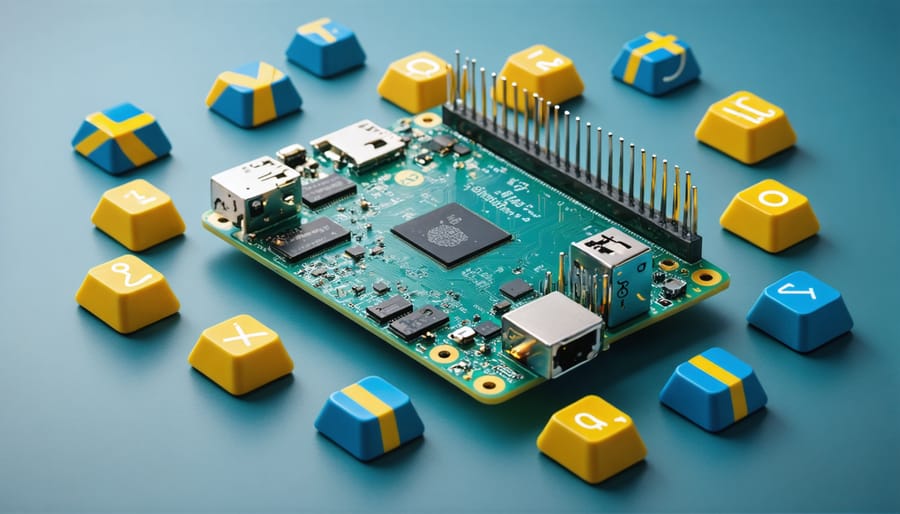
Configure Swedish keyboard layouts on your Raspberry Pi 4 Model B and other models through the raspi-config tool or by manually editing the /etc/default/keyboard file. Swedish keyboards require specific considerations for special characters like å, ä, and ö, which are essential for daily computing in Nordic regions. Whether you’re using a physical Swedish keyboard or remapping an international one, proper configuration ensures seamless typing and programming experiences. The rising popularity of Raspberry Pi in Swedish educational institutions and maker spaces has made keyboard compatibility a crucial aspect of system setup, particularly for projects requiring local language support.
This guide addresses both USB and Bluetooth keyboard options, keyboard mapping solutions, and troubleshooting steps for common character input issues specific to Swedish layouts. Understanding these fundamentals helps ensure your Raspberry Pi project maintains full functionality while supporting Swedish character sets and keyboard conventions.
Swedish Keyboard Layout Basics
Key Swedish Characters and Symbols
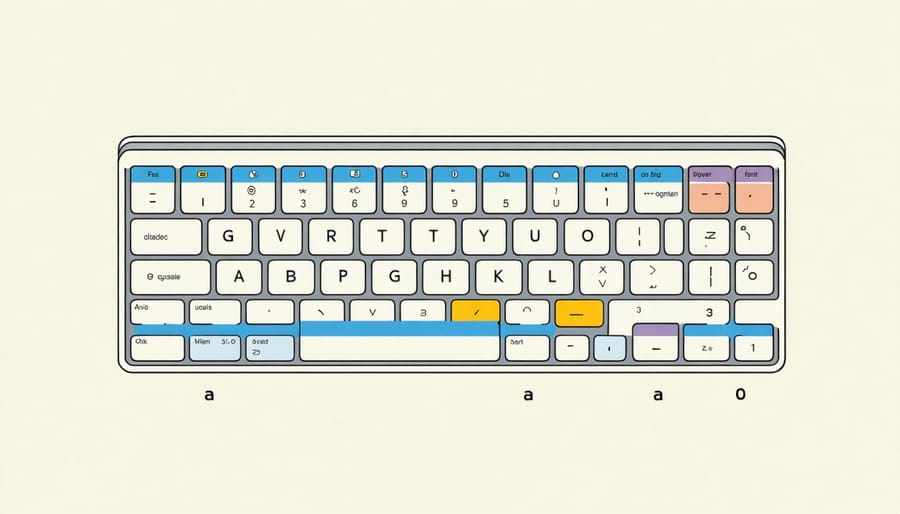
Swedish keyboards feature three unique characters that are essential for typing in Swedish: å (a with ring), ä (a with umlaut), and ö (o with umlaut). These characters are typically located on the right side of the keyboard, next to the return/enter key. When configuring your Raspberry Pi with a Swedish keyboard layout, these characters are automatically mapped to their correct positions.
In addition to these primary characters, Swedish keyboards also include special symbols commonly used in the Swedish language, such as § (section sign) and ° (degree symbol), which are accessed using the AltGr key combinations. The € (Euro) symbol is typically available through AltGr+E, while the @ symbol is accessed via AltGr+2, different from the US layout where it’s Shift+2.
Understanding these character positions is crucial for efficient typing in Swedish. When properly configured, your Raspberry Pi will recognize these inputs without any additional software or modifications. The Swedish keyboard layout also maintains compatibility with standard English characters, making it versatile for both Swedish and English text input.
Standard vs. Extended Layout Options
Swedish keyboards come in two main layout variants: the Standard Swedish layout and the Extended Swedish layout. The Standard layout covers basic Swedish characters (å, ä, ö) and common symbols, making it suitable for everyday typing. The Extended layout includes additional characters used in other Nordic languages and special symbols, beneficial for users who frequently work with multiple Scandinavian languages or technical documentation.
The Standard layout maintains compatibility with most Raspberry Pi systems out of the box, while the Extended layout might require additional configuration. For most users, the Standard layout provides sufficient functionality for Swedish text input. However, programmers and content creators working across Nordic markets may find the Extended layout’s extra character options valuable, despite the slightly steeper learning curve.
Choose the Standard layout if you primarily type in Swedish and want hassle-free setup. Opt for Extended if you need broader language support or specialized symbols.
Setting Up Swedish Keyboard on Raspberry Pi
Raspberry Pi OS Configuration
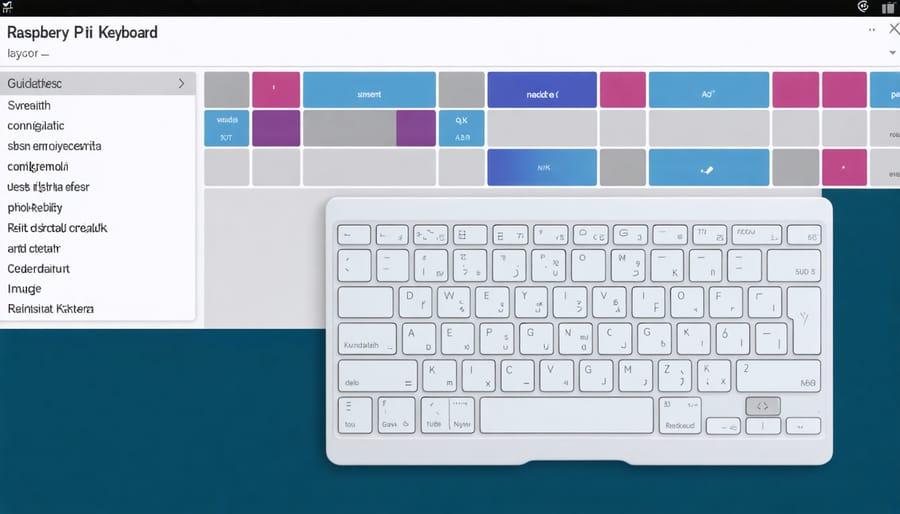
To configure your Raspberry Pi for a Swedish keyboard layout, you’ll need to make adjustments through both the terminal and graphical interface. Let’s start with some essential terminal commands for quick setup.
Open the terminal and type:
sudo raspi-config
Navigate to “Localisation Options” and select “Keyboard.” Choose “Generic 105-key PC” for the keyboard model, then select “Swedish” from the layout options. For variant, choose “Swedish – Swedish (no dead keys)” if you prefer direct character input.
Alternatively, using the desktop environment:
1. Click the Raspberry Pi menu
2. Go to Preferences > Keyboard and Mouse
3. Select the “Keyboard” tab
4. Click “Keyboard Layout”
5. Choose “Sweden” from the country list
6. Select “Swedish” from the variants
After applying these changes, reboot your Raspberry Pi for the settings to take effect. You can test the layout by typing special characters like å, ä, and ö. If characters aren’t appearing correctly, verify that your system locale is also set to sv_SE.UTF-8 through raspi-config.
Remember to update your system before making these changes:
sudo apt update
sudo apt upgrade
This ensures you have the latest keyboard layout definitions and system configurations available.
Common Configuration Issues
When setting up a Swedish keyboard on your Raspberry Pi, several common configuration issues might arise. The most frequent problem occurs when the system defaults to a US keyboard layout despite selecting Swedish during installation. To resolve this, open the terminal and run ‘sudo raspi-config’ to verify your keyboard settings under “Localisation Options.”
Another prevalent issue is special characters not working correctly. Swedish characters like å, ä, and ö may output unexpected symbols or not appear at all. This typically happens when the system’s locale settings aren’t properly configured. Check your locale settings by running ‘locale’ in the terminal and ensure sv_SE.UTF-8 is set as your default.
Users often encounter problems with function keys and special combinations specific to Swedish keyboards. If your Alt Gr key combinations aren’t working, verify that the correct keyboard model is selected in your system settings. For Raspberry Pi OS, navigate to Preferences > Keyboard and Mouse Settings to adjust these options.
Boot-time keyboard recognition issues can occur with certain USB keyboards. If your Swedish keyboard isn’t recognized during startup, try connecting it to different USB ports or using a powered USB hub. Some users have reported success by adding ‘keyboard-configuration/layoutcode=se’ to their config.txt file.
Remember to reboot your Raspberry Pi after making any keyboard configuration changes to ensure they take effect properly.
Compatible Keyboard Options
Official Raspberry Pi Keyboard
The Raspberry Pi Foundation offers official Swedish keyboard options that are specifically designed for Swedish users. These keyboards come with pre-configured Swedish layout and include all essential Nordic characters like å, ä, and ö in their standard positions. The build quality is excellent, featuring a robust plastic construction and responsive keys that provide good tactile feedback.
The official keyboard connects via USB and is plug-and-play compatible with all Raspberry Pi models. It includes three USB 2.0 ports, making it an excellent hub for connecting additional peripherals. The keyboard’s firmware supports Swedish characters out of the box, eliminating the need for complex configuration or manual layout adjustments.
Users particularly appreciate the compact design and the familiar Nordic QWERTY layout, which matches standard Swedish keyboards. While the price point is slightly higher than generic alternatives, the seamless integration and reliable performance make it a worthwhile investment for Swedish users working with Raspberry Pi systems.

Third-Party Alternatives
Several keyboard alternatives are readily available in the Swedish market that work seamlessly with Raspberry Pi. The Logitech K400 Plus wireless keyboard stands out as a popular choice, offering built-in Swedish layout support and a convenient touchpad. It’s particularly useful for projects where space is limited, as it eliminates the need for a separate mouse.
For budget-conscious users, the Trust Classicline keyboard provides excellent value with its Swedish layout and plug-and-play compatibility. While it’s a basic wired option, it offers reliable performance and durability at an affordable price point.
The Microsoft Wireless Desktop 900 combination is another solid choice, featuring both a keyboard and mouse with full Swedish character support. Its wireless capability and extended battery life make it ideal for clean, cable-free setups.
For those seeking a premium option, the Das Keyboard Professional offers exceptional build quality and is available with Nordic layout options. Though pricier, its mechanical switches provide superior typing experience and longevity.
Many users also report success with the Nordic version of the Cherry KC 1000, which offers a professional feel at a mid-range price point. Its slim profile and durable construction make it particularly suitable for educational environments and maker spaces.
Remember that most USB keyboards with Swedish layouts will work with Raspberry Pi, provided they don’t require specialized drivers or software.
Advanced Configuration Tips
For those seeking to fine-tune their Swedish keyboard experience on Raspberry Pi, several advanced configuration options can enhance functionality and user comfort. Create a custom keyboard layout file in the /usr/share/X11/xkb/symbols/ directory to add special Swedish characters or modify existing key combinations. This allows you to map additional characters like å, ä, and ö to more convenient positions.
Consider using xmodmap to create custom key bindings that better suit your workflow. For instance, you can remap the Alt Gr key to function as a dedicated Swedish character modifier, making it easier to type special characters without complex key combinations.
Power users might want to implement AutoKey scripts to create custom text expansion shortcuts for frequently used Swedish phrases or commands. This can significantly improve typing efficiency, especially when working with both English and Swedish content.
To optimize keyboard response times, adjust the keyboard repeat delay and rate through the Raspberry Pi configuration tool. The recommended settings for Swedish typing are a delay of 400ms and a rate of 25 repeats per second, though these can be customized based on personal preference.
Remember to back up your custom configurations before making changes, and test thoroughly in a safe environment to ensure stability. These adjustments can significantly improve your typing experience while maintaining full compatibility with Swedish character requirements.
Setting up a Swedish keyboard with your Raspberry Pi doesn’t have to be a complicated process. Throughout this guide, we’ve explored the essential aspects of keyboard compatibility, from basic configuration steps to advanced customization options. The key takeaway is that most USB keyboards will work seamlessly with your Raspberry Pi, but you’ll need to ensure proper language and layout settings for Swedish characters to function correctly.
For the best experience, we recommend using keyboards with official Nordic or Swedish layouts, as these provide native support for special characters like å, ä, and ö. Remember to configure your system settings through either the desktop interface or command line, depending on your preferred method. If you’re experiencing any issues, double-check your keyboard layout settings and ensure you’ve selected “Swedish” as your input language.
Whether you’re a student, developer, or hobbyist, having a properly configured Swedish keyboard will enhance your Raspberry Pi experience. Keep this guide handy for reference, and don’t hesitate to experiment with different keyboard options to find the setup that works best for your needs.