
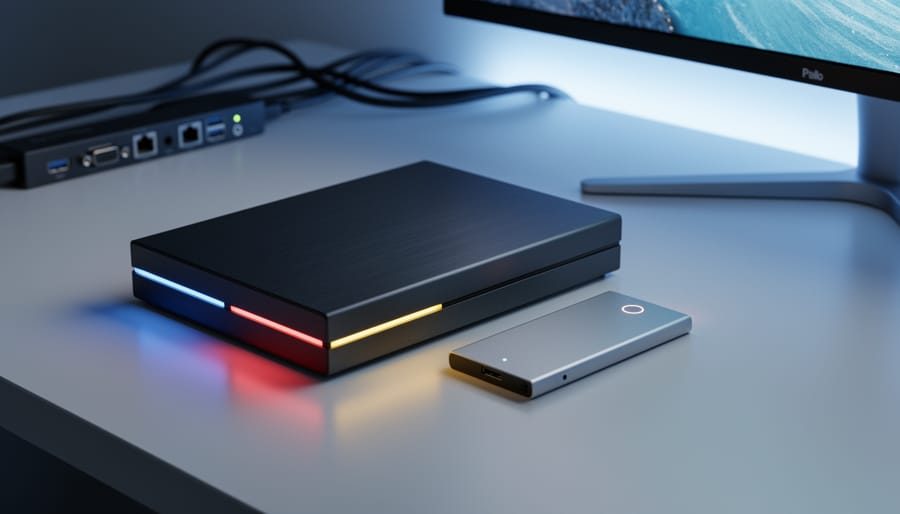
CrystalDiskInfo is a free, open-source diagnostic tool that monitors the health status of your hard drives and SSDs by reading S.M.A.R.T. (Self-Monitoring, Analysis, and Reporting Technology) data and presenting it in an easy-to-understand interface. Whether you’re running a Raspberry Pi NAS setup, maintaining external storage for your projects, or simply want to catch drive failures before they happen, this lightweight utility gives you real-time insights into temperature, power-on hours, error rates, and overall drive condition.
The tool assigns health ratings ranging from “Good” (blue) to “Caution” (yellow) to “Bad” (red), making it simple to assess whether your storage is functioning properly or approaching failure. For Raspberry Pi enthusiasts, this becomes particularly valuable when managing SD cards, USB drives, and external hard drives that power everything from media servers to home automation systems.
What makes CrystalDiskInfo stand out is its straightforward approach to complex data. Instead of wading through cryptic technical specifications, you get a color-coded dashboard that highlights potential problems immediately. The software displays critical attributes like reallocated sector counts, read error rates, and spin-up times, all of which can predict drive failure weeks or months in advance.
For anyone maintaining tech projects or storage-dependent systems, understanding your drive’s health isn’t optional anymore. Drive failure can mean lost data, corrupted projects, and hours of reconstruction work. CrystalDiskInfo gives you the early warning system you need to backup critical files and replace aging hardware before disaster strikes.
What Crystal Disk Info Does (And Why You Need It)
Crystal Disk Info is a free Windows utility that reads the health data your storage drives constantly generate and translates it into plain-English warnings before failure strikes. Every modern hard drive, SSD, and many USB storage devices contain built-in self-monitoring sensors called S.M.A.R.T. (Self-Monitoring, Analysis and Reporting Technology) that track dozens of performance metrics, from how many hours the drive has run to how many sectors have failed. Crystal Disk Info pulls this raw data and presents it through a simple color-coded interface: blue means healthy, yellow signals caution, red screams danger.
For Raspberry Pi enthusiasts running media servers, retro gaming setups, or network-attached storage builds, this tool becomes particularly valuable. While you can’t run Crystal Disk Info directly on the Pi’s Linux environment, you can connect your Pi’s external USB drives to a Windows PC for quick health checks, or use an SD card reader to scan the microSD cards that power your projects. Many Raspberry Pi builds rely on aging USB hard drives or budget SD cards that work perfectly until they don’t, making regular monitoring essential for projects you actually depend on.
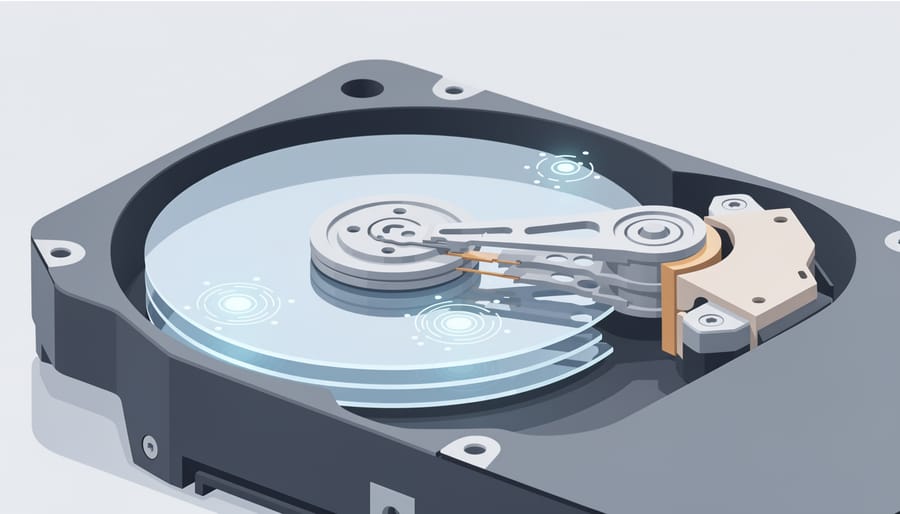
The software works with traditional spinning hard drives, solid-state drives, NVMe drives, and most USB-connected storage devices. It displays real-time temperature readings, total power-on hours, and critical metrics like reallocated sector counts, the canary in the coal mine for imminent failure. You’ll spot warning signs like rising temperatures or increasing error rates weeks before a complete breakdown, giving you time to migrate data and replace hardware on your schedule rather than in an emergency.
Understanding Your Drive’s Health Report
The Health Status Colors Explained
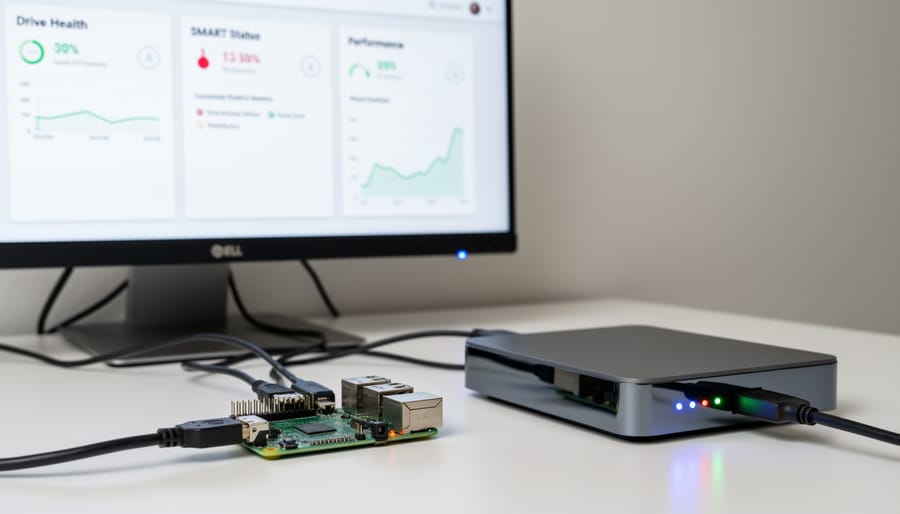
Crystal Disk Info cuts through the complexity of drive diagnostics with a traffic-light system you can understand at a glance. When you launch the software, the top of the window displays one of three color-coded health statuses: blue for “Good,” yellow for “Caution,” or red for “Bad.” This immediate visual feedback tells you whether your drive needs attention right now or if you can keep working with confidence.
Blue (Good) means your drive is operating normally with no concerning issues detected. All S.M.A.R.T. attributes fall within acceptable ranges, and you can expect the drive to continue functioning reliably. Your action here is simple: carry on using the drive and check back during your next routine maintenance session, perhaps monthly for critical systems or quarterly for less important storage.
Yellow (Caution) signals that one or more attributes have crossed warning thresholds. Your drive is still functional, but it’s showing early warning signs of potential problems. Maybe reallocated sectors are climbing or temperatures are running consistently high. This status demands action within days, not weeks. Back up your important data immediately if you haven’t already, investigate which specific attribute triggered the warning, and start planning for a replacement drive. You can likely continue using the drive for non-critical tasks while you transition, but don’t ignore this warning.
Red (Bad) means critical failure is imminent or already happening. Stop using this drive for anything important immediately. Back up whatever data you can recover, then replace the drive as soon as possible. A red status often means the drive has exhausted its error-correction capabilities and is actively failing.
Key S.M.A.R.T. Attributes Worth Watching
While Crystal Disk Info displays dozens of technical values, you only need to focus on a handful of attributes that actually predict drive failure. Understanding these key metrics helps you spot real problems before they escalate into data loss.
The most critical attributes fall into a few categories: physical drive damage, usage wear, and operational stress. Each tells a different part of your drive’s health story, and knowing what values matter turns confusing numbers into actionable warnings.
| Attribute | What It Means | When to Worry |
|---|---|---|
| Reallocated Sectors Count | Bad blocks the drive has remapped to spare areas | Any value above 0 and climbing indicates physical damage |
| Current Pending Sectors | Unstable sectors waiting to be remapped or recovered | Consistent non-zero values suggest spreading problems |
| Power-On Hours | Total time the drive has been running | Over 40,000 hours for consumer drives signals end-of-life approaching |
| Temperature | Current operating temperature of the drive | Sustained temps above 50°C for HDDs or 70°C for SSDs accelerate wear |
| Read/Write Error Rate | How often the drive encounters errors during operation | Raw values increasing over time indicate deteriorating reliability |
Reallocated sectors deserve special attention. Every storage drive ships with spare capacity to replace failing areas. When Crystal Disk Info shows reallocated sectors above zero, the drive has already found physical damage. A handful of reallocated sectors early in a drive’s life isn’t catastrophic, but if that number keeps climbing, the drive is failing progressively. Back up immediately when you see this value increase.
Current pending sectors represent an even more urgent warning. These are blocks the drive knows are unstable but hasn’t yet remapped. If this number stays above zero across multiple checks, the drive is struggling to recover data or find spare capacity for remapping. This often precedes complete failure within weeks.
Temperature matters more than many users realize, especially in enclosed Raspberry Pi projects. High operating temperatures dramatically accelerate wear on both mechanical and solid-state drives. If Crystal Disk Info consistently shows temps in the danger zone, you can monitor system temps more broadly to identify cooling problems before they damage multiple components.
For SSDs specifically, watch the wear leveling count and total bytes written. These track how much of the drive’s write endurance you’ve consumed. Most consumer SSDs rate their endurance in terabytes written, and Crystal Disk Info shows you where you stand. A drive rated for 300TB written that’s already logged 280TB needs replacement planning.
Power-on hours provides useful context for other warnings. A three-year-old drive with 5,000 hours showing minor issues is different from a similar drive with 35,000 hours. Higher hours don’t guarantee failure, but they mean less margin for error when problems appear.
Setting Up Crystal Disk Info for Your Raspberry Pi Projects
Crystal Disk Info runs on Windows, which means monitoring your Raspberry Pi storage requires a slightly indirect but straightforward approach. The most practical method involves connecting your drives to a Windows PC where Crystal Disk Info is installed, allowing you to check health status before problems arise.
For external USB drives powering your Raspberry Pi projects, simply disconnect the drive from your Pi and plug it into your Windows machine. Crystal Disk Info will immediately recognize the drive and display its health metrics. This works perfectly for checking drives used in NAS configurations, media servers, or backup storage setups. Run a quick check every few months, or before migrating important data, to catch deterioration early.
Checking Raspberry Pi SD card health presents a slightly different challenge. Since Crystal Disk Info cannot directly monitor cards while they’re inserted in your Pi, you need a USB SD card reader connected to your Windows PC. Remove the SD card from your Raspberry Pi, insert it into the reader, and plug the reader into your computer. Crystal Disk Info will display the card’s S.M.A.R.T. data just like any other drive. This proves invaluable before starting new projects or when troublesizing corruption issues on existing installations.
For those running multiple Pi storage options simultaneously, create a regular monitoring schedule. Label each drive clearly and maintain a simple spreadsheet noting check dates and key metrics like power-on hours and reallocated sector counts. This baseline helps you spot concerning trends over time.
If your Raspberry Pi NAS runs continuously, schedule monthly or quarterly checks by temporarily shutting down, disconnecting drives, and running diagnostics. While this requires brief downtime, catching a failing drive before it crashes prevents far more disruptive data loss scenarios.
Windows-only operation might seem limiting, but most Raspberry Pi enthusiasts have access to at least one Windows machine for project setup and troubleshooting. The trade-off proves worthwhile given Crystal Disk Info’s clear interface and zero cost. For Linux-native alternatives, tools like smartmontools offer command-line monitoring directly on Raspberry Pi OS, though they lack the visual simplicity that makes Crystal Disk Info appealing for quick health checks.
Crystal Disk Info vs. Alternative Monitoring Tools
Crystal Disk Info shines as a free, no-nonsense monitoring tool, but it’s not the only option out there. Understanding how it stacks up against alternatives helps you pick the right tool for your specific projects.
| Tool | Platform Support | Key Strengths | Best For |
|---|---|---|---|
| Crystal Disk Info | Windows only | Free, simple interface, portable version, color-coded alerts | Quick health checks, beginners, Windows-based monitoring |
| HD Sentinel | Windows, Linux, DOS | Advanced testing, disk repair attempts, detailed logging | Professional diagnostics, critical data environments |
| GSmartControl | Windows, Linux, macOS | Cross-platform, open source, detailed S.M.A.R.T. data | Multi-OS setups, users comfortable with technical details |
| Built-in OS Tools | All platforms | No installation needed, basic health status | Casual monitoring, minimal requirements |
Crystal Disk Info’s biggest advantage is accessibility. You don’t need to parse complex technical readouts or navigate buried settings. Launch the program, and you immediately see whether your drives are healthy. The portable version runs without installation, perfect for troubleshooting multiple machines or checking drives during a network drive setup.
HD Sentinel offers more depth if you’re willing to pay for it. The software attempts to repair certain disk issues and provides trend analysis that predicts failure timelines. For mission-critical storage or professional environments, that extra investment makes sense. Crystal Disk Info won’t fix problems, but it excels at spotting them early.
GSmartControl fills the gap for Linux and macOS users who need Crystal Disk Info’s functionality on other platforms. The interface feels less polished, and interpreting the raw S.M.A.R.T. attributes requires more knowledge, but it works everywhere. If you run Raspberry Pi OS and want to monitor drives directly on your Pi, GSmartControl is your practical choice.
Built-in tools like Windows WMIC commands or Linux smartctl work fine for basic checks but lack visual clarity. You’ll spend time looking up attribute meanings instead of getting instant health status.
Real-World Use Cases for Tech Projects
Crystal Disk Info becomes essential when you’re running storage-dependent Raspberry Pi projects that can’t afford unexpected failures. A personal cloud server storing your family photos and documents demands healthy drives, and checking them weekly catches degrading sectors before they corrupt irreplaceable files. Run the scan every Sunday morning alongside your backup routine.
For Raspberry Pi NAS builds handling multiple drives, Crystal Disk Info helps you spot the weakest link. If you’re running four USB drives in your setup, one showing reallocated sectors while the others report clean health tells you exactly which drive to replace during your next upgrade window. Check all drives monthly and log the results to track degradation patterns.
Media server enthusiasts streaming movies and music benefit from quarterly health checks. A drive developing temperature issues under constant read operations will show climbing degrees in Crystal Disk Info before playback stutters appear. Catching overheating early means adding cooling or repositioning drives rather than rebuilding your entire library after a thermal failure.
Before starting time-sensitive projects like recording lengthy timelapse sequences or hosting a home automation system, verify your SD card’s health through a USB reader. Five minutes checking for wear leveling issues beats discovering corruption halfway through a month-long capture.
New drive verification matters too. Run Crystal Disk Info immediately on purchased drives to confirm zero power-on hours and healthy baseline readings. Some retailers ship refurbished drives as new, and this check catches deceptive practices while you can still return the drive hassle-free.
Common Questions About Drive Health Monitoring

Drive health monitoring raises practical questions for anyone maintaining storage systems, whether you’re running a Raspberry Pi NAS or just keeping an eye on your main PC. Here are the answers to the most common concerns.
How often should you check your drives? For everyday use, monthly checks strike the right balance between vigilance and obsession. If you’re running critical systems like a home server or media library, weekly checks make sense. The good news: Crystal Disk Info’s lightweight design means you can leave it running in the background without worry, it’ll alert you to problems without requiring constant manual checks.
Does monitoring affect performance? Not noticeably. Crystal Disk Info reads S.M.A.R.T. data that your drive already maintains internally, so the performance impact is negligible. You won’t see any slowdown in your Raspberry Pi projects or day-to-day computing. The software pulls data during idle moments, making it essentially invisible during normal use.
Can Crystal Disk Info fix drive problems?
No, Crystal Disk Info is a diagnostic tool that detects problems but doesn’t repair them. Think of it as a smoke detector: it warns you of danger but doesn’t put out the fire. Once you get a warning, you’ll need backup software and potentially a new drive.
What should I do when a warning appears?
Start by backing up your data immediately, this is non-negotiable. A “Caution” status means begin planning a replacement soon, while “Bad” status demands immediate action. For Raspberry Pi setups, copy your SD card image or transfer files from external drives to reliable storage before the situation worsens.
Are there alternatives for Linux users?
Yes. GSmartControl provides similar S.M.A.R.T. monitoring with a graphical interface on Linux, perfect for Raspberry Pi OS users. Command-line enthusiasts can use the smartmontools package, which offers powerful monitoring capabilities directly from the terminal.
Will checking drive health void my warranty?
No. Reading S.M.A.R.T. data is a standard diagnostic function that doesn’t modify your drive or firmware. Manufacturers expect users to monitor drive health, and some even require S.M.A.R.T. reports for warranty claims.
One question that surprises many users: “If my drive shows ‘Good’ status, am I safe?” Mostly yes, but good health isn’t a guarantee against sudden failure. Mechanical shocks, power surges, or manufacturing defects can cause drives to fail without warning. This is why regular monitoring works best alongside a solid backup strategy, Crystal Disk Info catches the predictable failures (about 60% of drive deaths), while backups protect you from everything else.
The monitoring routine itself should be simple. Set a calendar reminder, launch Crystal Disk Info, glance at the status colors, and you’re done in thirty seconds. If everything shows green, close the program and move on. If you see yellow or red, that’s your cue to take action before a minor warning becomes major data loss.
Storage drives don’t fail if they’ll fail, they fail when they fail. The difference between a minor inconvenience and a catastrophic data loss often comes down to whether you saw the warning signs in time. Crystal Disk Info gives you that early warning system for free, with a clear interface that doesn’t require a degree in data storage to understand.
Make drive health checks part of your regular maintenance routine, just like updating your Raspberry Pi’s software or checking your network security. Set a calendar reminder to review your storage status monthly, especially for projects running 24/7 like NAS setups or media servers. Those few minutes can save you hours of recovery work and potential data loss.
Remember that monitoring complements but never replaces proper backup practices. Even healthy drives can fail unexpectedly. Combine Crystal Disk Info’s predictive monitoring with a solid 1-2-3 backup strategy to protect your important projects from every angle. Your future self will thank you when a drive starts showing caution signs and you have time to migrate data safely rather than scrambling to recover files from a dead drive.