


In a world where data loss can cripple businesses and devastate personal lives, the 3-2-1 backup strategy stands as the gold standard of data protection. This battle-tested approach requires maintaining three total copies of your data, storing them on two different types of media, and keeping one copy offsite. Think of it as your digital insurance policy – simple enough for home users to implement, yet robust enough for enterprise deployment.
Modern cloud services have revolutionized how we execute this strategy, making it more accessible and automated than ever before. Instead of juggling physical hard drives and tape backups, you can now leverage services like Google Drive, AWS, or Azure to maintain your offsite copy while using local NAS devices or external drives for your primary and secondary backups. This seamless integration of local and cloud storage not only simplifies the backup process but also provides unprecedented flexibility in data recovery options.
By following the 3-2-1 backup strategy, you’re not just creating copies – you’re building a resilient data protection system that can survive hardware failures, ransomware attacks, natural disasters, and human errors. The time to implement this strategy isn’t after a data disaster – it’s now.
What is the 1-2-3 Backup Strategy?
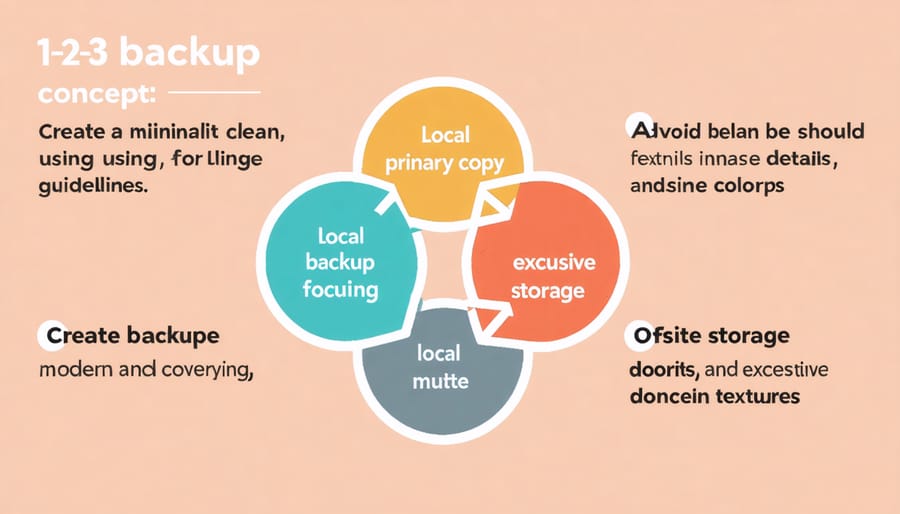
The 1-2-3 backup strategy is a straightforward yet powerful approach to data protection that follows three fundamental principles, making it easy to remember and implement. At its core, this strategy ensures you maintain multiple copies of your data across different storage media, protecting against various types of data loss scenarios.
Let’s break down the numbers:
“1” represents your primary copy – the original data on your main working device, such as your computer’s hard drive or your Raspberry Pi’s SD card. This is the data you interact with daily.
“2” refers to maintaining your backups on two different types of storage media. For example, you might keep one backup on an external hard drive and another on cloud storage. Using different media types protects against media-specific failures and provides technological diversity in your backup strategy.
“3” indicates the total number of copies you should maintain, including your primary copy. This means creating two backup copies of your original data. One of these copies must be stored offsite – either physically in a different location or, more commonly today, in cloud storage. This offsite requirement is crucial for protecting against local disasters like fires, floods, or theft.
The beauty of this strategy lies in its simplicity and effectiveness. By following these principles, you’re protected against:
– Hardware failures (through multiple copies)
– Local disasters (through offsite storage)
– Media degradation (through different storage types)
– Accidental deletions (through multiple restore points)
For Raspberry Pi enthusiasts, this might mean keeping your project files on your Pi (1), backing them up to a USB drive (2), and maintaining another copy in cloud storage like Google Drive or DropBox (3). This ensures your valuable projects and configurations are always safe and recoverable, no matter what happens.
Implementing the Strategy in the Cloud
Primary Copy Management
Your primary copy represents your active working files – the documents, photos, code, and other data you interact with daily. Managing this copy effectively is crucial for the 1-2-3 backup strategy’s success. Start by organizing your files into a clear folder structure, making it easier to track and back up your data systematically.
Keep your primary copy on your main working device, whether it’s your computer’s internal drive or a dedicated external drive. Regularly clean up unnecessary files and maintain consistent naming conventions to prevent clutter. Consider using file synchronization tools to automatically update changes across your working devices.
To protect your primary copy from immediate threats like accidental deletions or file corruption, enable features like Windows File History or macOS Time Machine. These tools create incremental backups of your working files, allowing quick recovery of previous versions.
Remember, your primary copy should be readily accessible for daily work while maintaining good organization. This foundation ensures your subsequent backup copies will be well-structured and complete.
Local Backup Solutions
For your local backup solution, consider implementing a reliable second copy on different media types to ensure data redundancy. One effective approach is setting up a local NAS backup system, which provides excellent storage capacity and accessibility. External hard drives offer another practical option, especially when using different drive manufacturers to minimize the risk of simultaneous hardware failures.
USB flash drives work well for smaller data sets, while Blu-ray discs or DVDs provide a more permanent solution for archival purposes. When choosing your local backup media, consider factors like storage capacity, transfer speeds, and durability. For optimal protection, rotate between multiple backup devices and store them in different locations within your premises.
Remember to test your backup media regularly and replace them according to manufacturer recommendations. Set up automated backup schedules using built-in tools like Windows Backup or Time Machine for Mac, ensuring your second copy stays current without manual intervention.
Cloud Storage Integration
For your third backup destination, leverage cloud storage services like Google Drive, Dropbox, or specialized hybrid cloud storage solutions to store your data offsite. This provides protection against local disasters and ensures accessibility from anywhere. Configure your backup software to automatically encrypt sensitive files before uploading them to the cloud. Most modern backup solutions offer seamless cloud integration – simply enter your credentials and select which folders to sync. Consider factors like storage costs, upload speeds, and security features when choosing a cloud provider. For optimal performance, schedule cloud backups during off-peak hours when your internet connection isn’t heavily used.
Automating Your Backup Process
Scheduling Regular Backups
Automating your backups is crucial for maintaining consistent data protection without relying on manual intervention. For your primary backup (1), set up daily incremental backups during off-peak hours, typically between 2 AM and 4 AM when system usage is minimal. Most modern backup solutions offer built-in scheduling features that make this process straightforward.
For your secondary backup (2), configure weekly full backups to run during weekend hours. This ensures comprehensive data protection while minimizing impact on system performance during busy workdays. Consider staggering these backups across different times to prevent resource conflicts.
Your tertiary backup (3) should be scheduled for monthly execution, with careful consideration of your internet bandwidth and storage capacity. Many cloud backup services allow you to set bandwidth limits during business hours and remove these restrictions during off-hours to optimize transfer speeds.
Remember to monitor your backup logs regularly and set up automated notifications for both successful completions and failures. Most backup solutions offer email alerts or integration with popular messaging platforms. It’s also wise to periodically test your recovery process by scheduling quarterly restore drills to ensure your backup strategy remains effective and reliable.
Consider seasonal adjustments to your backup schedule, accounting for business cycles, maintenance windows, and peak usage periods to maintain optimal system performance while ensuring comprehensive data protection.
Verification and Monitoring
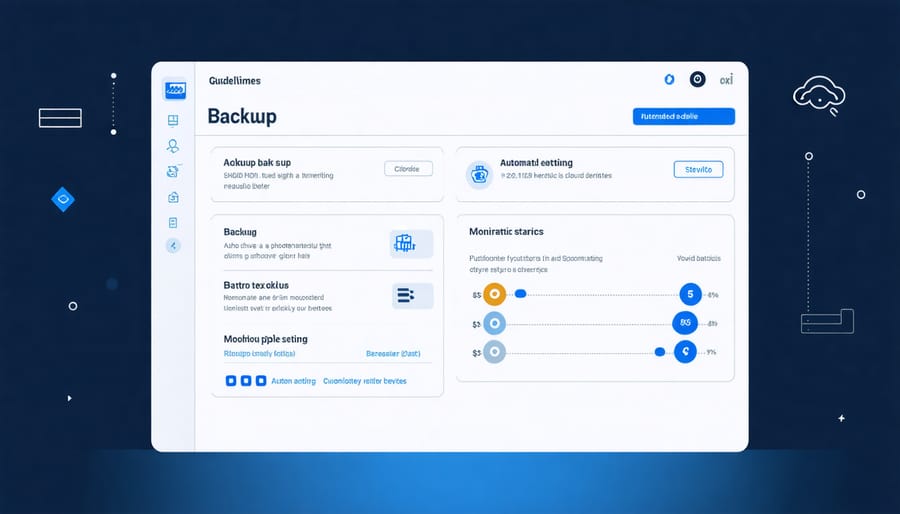
Regular verification of your backups is crucial to ensure they’re working correctly and your data is actually recoverable. Set up a monthly schedule to test your backup system by performing test restores from each of your backup copies. Start with small files and gradually test larger datasets to confirm the integrity of your backups.
Implement automated monitoring tools that can alert you when backups fail or when there are significant changes in backup sizes. Many cloud backup services offer built-in monitoring dashboards that track backup status, storage usage, and potential issues. Enable email notifications for backup completion status and error reports.
Create a backup log that documents successful backups, test restores, and any issues encountered. This log helps track patterns and identify potential problems before they become critical. Include details such as backup completion times, file sizes, and any errors or warnings.
Regularly check your backup media for signs of wear or corruption. For physical storage devices, ensure they’re stored in appropriate environmental conditions. For cloud backups, verify that sync status is current and that you can access your backup locations from different devices.
Consider implementing checksums or hash verification to ensure your backed-up files match the originals exactly. This extra step provides confidence that your backups are faithful copies of your important data.
Common Pitfalls and Solutions
Security Considerations
Implementing secure data protection measures is crucial for safeguarding your backups against various threats. Start by encrypting your data using industry-standard encryption protocols like AES-256 before creating any backup copies. This ensures your information remains protected even if unauthorized parties gain access to your backup files.
For physical copies, store them in climate-controlled, secure locations away from potential hazards like fire, floods, or magnetic interference. Consider using a fireproof safe for local storage and maintain strict access controls to prevent tampering.
When utilizing cloud storage, enable two-factor authentication and regularly update your access credentials. Choose cloud providers that offer end-to-end encryption and comply with relevant data protection regulations. Monitor your backup access logs regularly to detect any suspicious activities.
Remember to test your backup security measures periodically. This includes verifying encryption integrity, checking physical storage conditions, and updating security protocols as needed. Keep your backup software and systems updated to protect against emerging security vulnerabilities.
Document your security procedures and maintain a list of authorized personnel who can access your backups. This documentation should include emergency recovery procedures and contact information for relevant security personnel or service providers.
Cost Management
Implementing the 1-2-3 backup strategy doesn’t have to break the bank. The key is to optimize storage costs while maintaining robust data protection. Start by analyzing your data to identify what truly needs multiple copies. Not all data requires the same level of redundancy – distinguish between critical and non-critical files.
For local copies, consider using external hard drives during sales periods or opt for reliable but cost-effective NAS solutions. Cloud storage costs can be minimized by taking advantage of tiered storage options, where less frequently accessed backups are moved to cheaper storage classes automatically.
Many cloud providers offer lifecycle management policies that can automatically transition older backups to more economical storage tiers. For instance, you might keep your most recent backup in standard storage while moving older versions to archive storage, potentially saving up to 60% on storage costs.
Don’t forget to regularly audit your backup sets and remove unnecessary duplicates or outdated files. Consider implementing deduplication and compression technologies to reduce storage requirements. Some providers offer these features built-in, while others might require additional tools. The initial investment in such tools often pays for itself through long-term storage savings.
The 1-2-3 backup strategy stands as a time-tested approach that can significantly enhance your data protection measures. By maintaining three copies of your data, storing them on two different types of media, and keeping one copy offsite, you create a robust defense against data loss. This straightforward yet powerful methodology has proven its worth countless times in both personal and professional settings.
Remember that successful implementation requires regular maintenance and testing of your backup systems. Schedule periodic checks of your backups, verify their integrity, and update your backup procedures as your needs evolve. Consider automating as much of the process as possible to ensure consistency and reduce the risk of human error.
Start small if you need to – even a basic implementation of the 1-2-3 strategy is better than no backup at all. As you become more comfortable with the process, you can expand and refine your approach. The peace of mind that comes from knowing your valuable data is properly protected makes the initial effort of setting up this backup strategy well worth the investment.
Don’t wait for a data disaster to strike – begin implementing your 1-2-3 backup strategy today.