


Your laptop needs a cooling pad if it regularly crosses 80°C under load, throttles performance during intensive tasks, or runs uncomfortably hot during extended sessions. The right cooling pad can drop temperatures by 10-20°C, but choosing one requires matching fan configuration, noise output, and build quality to your specific laptop size and workload. This guide walks you through the selection criteria that actually matter, compares active versus passive cooling approaches, and presents six proven options including the HAVIT HV-F2056 15-17 Inch Laptop Cooler Cooling Pad for budget-conscious users and the Razer Laptop Cooling Pad Adaptive Smart for performance enthusiasts.
Most buyers waste money on cooling pads with misaligned fans or insufficient airflow for their usage pattern. A content creator rendering video needs different cooling capacity than someone browsing and streaming. The TECKNET Laptop Cooling Pad with 9 USB Fans delivers maximum airflow for gaming laptops and workstations, while the KLIM Wind Laptop Cooling Pad balances portability with effective cooling for everyday computing. Understanding the difference between mesh-only designs and active fan systems prevents the common mistake of buying a pad that can’t handle your laptop’s thermal output.
The comparison tables and scenario-based recommendations ahead show you exactly which cooling pad configuration fits your laptop model, desk setup, and performance requirements. You’ll also learn which advertised features provide real thermal benefit versus marketing fluff, and why fan diameter matters more than total fan count for certain laptop designs.
Key Factors to Consider When Buying a Laptop Cooling Pad

Laptop Size Compatibility and Fan Configuration
Cooling pads come in specific size ranges, typically 12-13 inches, 15-16 inches, and 17+ inches, and you must choose one that matches or slightly exceeds your laptop’s diagonal screen measurement. A pad that’s too small won’t support the entire chassis, forcing rear vents to overhang unsupported edges where they can’t access airflow. Conversely, an oversized pad wastes desk space and portability.
Fan configuration matters as much as overall dimensions. Large single fans (5+ inches) move high volumes of air quietly but create a single cooling zone, effective when your laptop’s primary vents sit centrally. Multiple smaller fans (2-4 inches each) let you distribute airflow across the entire base, useful for laptops with vents along the sides or near specific heat-generating components like the GPU. Three to four fans typically balance coverage and noise better than nine-fan arrays, which sound impressive but often produce diminishing returns, overlapping airflow zones don’t cool twice as effectively.
Check your laptop’s vent locations before buying. Flip it over and note where intake grilles sit. The cooling pad’s fans should align with those spots, not blow uselessly against solid plastic.
Airflow Design and Cooling Efficiency
Cooling efficiency hinges on two metrics: airflow volume and placement. CFM (cubic feet per minute) measures how much air a fan moves, higher numbers mean more airflow, but not always better cooling. A pad rated at 70 CFM sounds powerful, yet if those fans sit away from your laptop’s intake vents, you’re pushing air into empty space rather than through the chassis.
Single large fans (typically 140mm or bigger) move substantial air quietly at lower RPM, making them ideal for general-purpose cooling across the laptop’s base. They excel with laptops that have distributed ventilation but can miss concentrated hot spots. Multiple smaller fans (four to six 70-80mm units) let you target specific zones, you might position fans under the CPU and GPU areas of a gaming laptop where heat concentrates. The trade-off: smaller fans spin faster to match large-fan CFM, generating more noise.
Fan placement matters as much as fan count. Look for pads where you can align fans with your laptop’s actual vent locations. Some models use a mesh surface with freely-positioned fans; others fix fans in set patterns. Check your laptop’s underside before buying, if your vents cluster near the hinge, centered fans outperform edge-mounted ones regardless of CFM specs.
Adjustability and Ergonomics
Adjustable height and viewing angles serve two critical purposes: they improve airflow beneath your laptop and reduce neck strain during extended sessions. Most quality cooling pads offer between two and five height positions, typically ranging from 0 to 6 inches of elevation. Higher settings increase the gap between your laptop’s bottom vents and the desk surface, allowing cooler ambient air to enter more freely while hot exhaust escapes without recirculation.
The best angle depends on your posture and workspace setup. A 15-degree incline suits standard desk heights, while steeper angles (20-30 degrees) work better when you’re seated lower or want to replicate a standing desk position. Look for models with secure locking mechanisms at each height level, not flimsy friction-based stops that slip under your laptop’s weight.
Ergonomic positioning directly impacts cooling efficiency. When your laptop sits at the correct angle, internal fans don’t fight gravity to move air through the chassis. You’ll also type more comfortably with wrists at a neutral angle rather than bent upward. Fixed-position pads cost less but force you to adapt your posture to the pad. Adjustable models let you optimize both thermal performance and comfort simultaneously, making them worthwhile if you use your laptop for more than casual browsing.
Power Draw, USB Connectivity, and Ports
Most laptop cooling pads draw power through a USB connection to your laptop, eliminating the need for separate wall outlets. This USB-powered design offers portability but comes with trade-offs you need to understand before buying.
A typical cooling pad draws between 2.5W and 5W from a single USB port, though high-performance models with multiple large fans can pull up to 15W. Check your laptop’s USB port specifications, USB 2.0 ports supply 2.5W maximum, while USB 3.0 and newer ports can handle 4.5W or more. Underpowered connections won’t spin fans at rated speeds, reducing cooling effectiveness.
The critical feature many buyers overlook is USB pass-through ports. When a cooling pad occupies one of your laptop’s USB slots, you lose connectivity for other devices. Quality models include one or two pass-through USB ports on the cooling pad itself, letting you maintain the same number of available ports. Verify these pass-through ports match your laptop’s USB generation to avoid speed downgrades for connected peripherals.
Some premium models offer dual USB cable connections for powering higher fan counts, or include optional AC adapters for maximum performance without taxing your laptop’s ports. If you routinely use all your USB slots or run power-hungry peripherals, prioritize models with multiple pass-through ports or external power options.
Types of Laptop Cooling Pads Compared
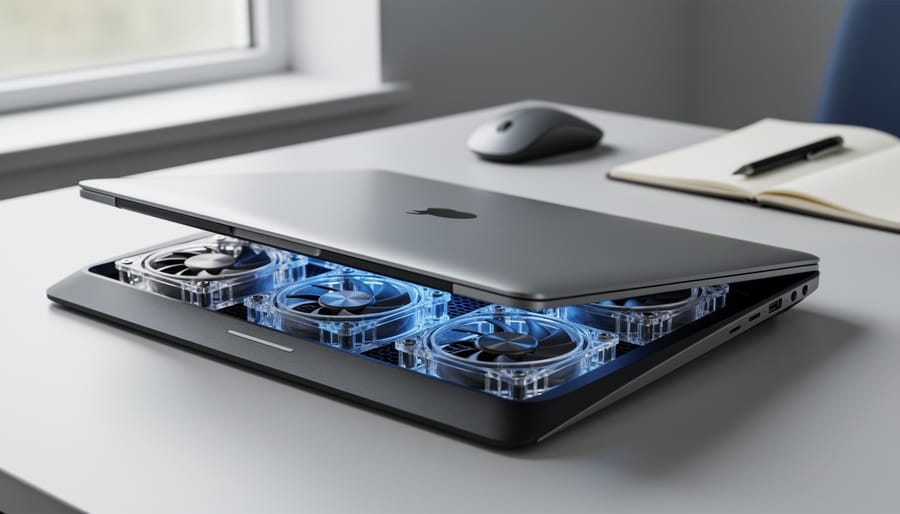
Slim Portable Coolers vs. Heavy-Duty Gaming Pads
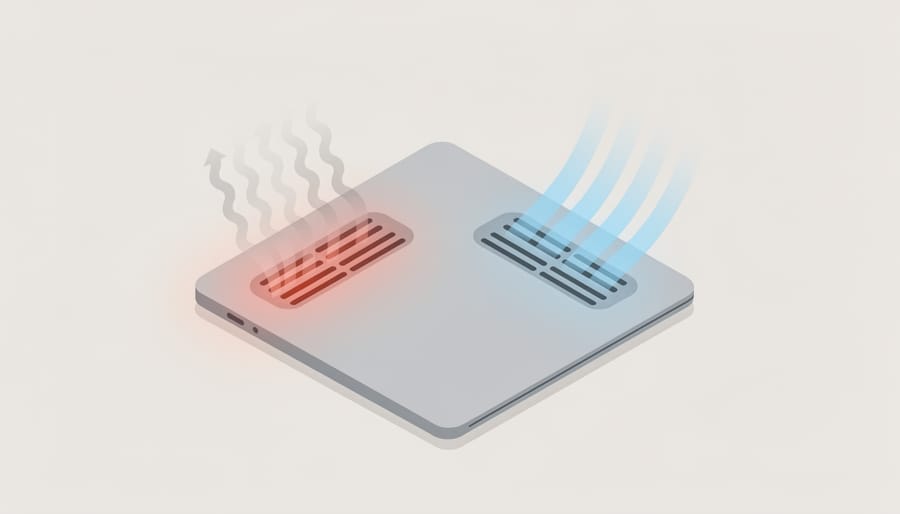
Portable coolers prioritize compact design and quiet operation. Most weigh under two pounds, feature one to three small fans, and slip easily into a laptop bag. They run at 1,000-2,000 RPM with minimal noise, making them ideal for coffee shops or libraries. Expect 2-5°C temperature drops, enough to prevent discomfort but not to handle sustained gaming loads. These models typically support 12-15.6 inch laptops and draw minimal power.
Gaming pads sacrifice portability for raw cooling power. They house four to nine large fans spinning at 2,500+ RPM, creating airflow exceeding 60 CFM. This aggressive cooling can reduce temperatures by 10-20°C under heavy loads, preventing thermal throttling during marathon gaming sessions. The trade-off? Weights reach three to four pounds, audible fan noise at higher speeds, and bulkier profiles unsuitable for travel.
Choose portables for business travel and everyday computing. Opt for heavy-duty models if you regularly game, render video, or run demanding simulations where thermal headroom directly impacts performance.
Fixed vs. Adjustable Height Models
Fixed-position cooling pads sit flat on your desk with a subtle forward tilt, typically around 5 to 8 degrees. They’re lighter, more stable during typing, and cost less. Choose this design if your laptop already rests at a comfortable viewing angle or you work in tight spaces where a taller setup would feel awkward.
Adjustable models let you dial in height across multiple levels, often five or more. This matters when you want your screen higher to reduce neck strain, or when you alternate between sitting upright and leaning back. The trade-off: movable joints add weight and can feel less rock-solid under heavy keystrokes. Gamers running intense sessions often prefer the stability of fixed pads, while office workers who shift posture throughout the day benefit from the flexibility.
Pick adjustable if ergonomic positioning ranks high on your list. Stick with fixed if you value portability, lower cost, and a simpler setup.
Smart Adaptive Cooling vs. Manual Control
Manual speed controls remain the standard on most cooling pads. You twist a dial or press a button to set fan RPM, and it stays there until you change it. This works fine if you run consistent workloads, video editing sessions, long gaming marathons, or basic office tasks that don’t spike CPU load unpredictably.
Adaptive cooling pads use embedded temperature sensors to monitor your laptop’s heat output in real time. When thermal load increases, the fans ramp up automatically; when things cool down, they dial back to reduce noise and power draw. This hands-off approach suits users who switch between light browsing and intensive tasks without wanting to fiddle with controls.
The trade-off is cost and complexity. Smart models typically run 30-50% more expensive, and sensor calibration isn’t always perfect, some react too slowly or overshoot fan speeds. Manual pads are cheaper, simpler, and let you prioritize silence when you know the laptop isn’t under load. Choose adaptive if you want set-and-forget convenience; stick with manual if you prefer direct control and lower price points.
HAVIT HV-F2056 15-17 Inch Laptop Cooler Cooling Pad
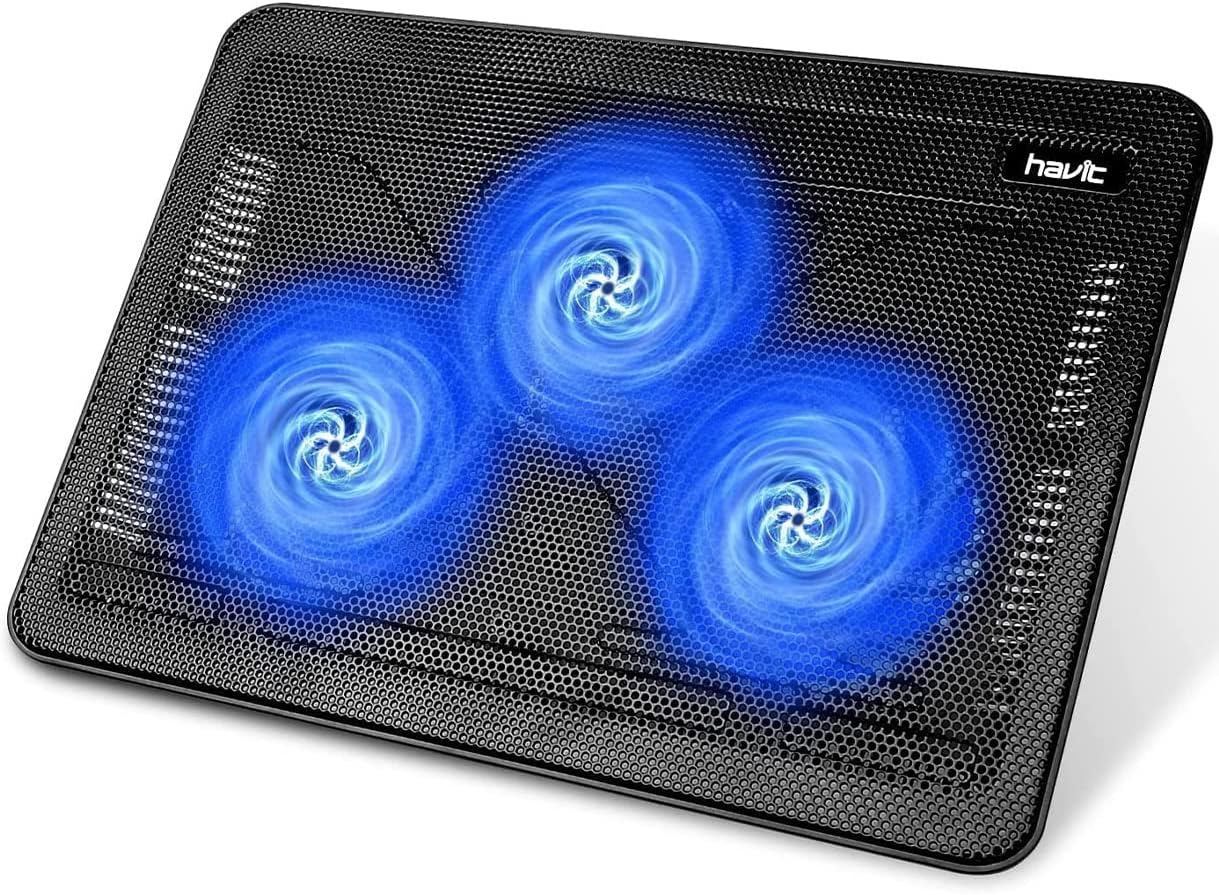
The HAVIT HV-F2056 targets users who need effective cooling without bulk. This slim metal-mesh pad fits laptops from 15 to 17 inches and runs three fans under the deck, one larger unit in the center flanked by two smaller ones. The metal construction serves a dual purpose: it acts as a passive heat sink while supporting the active airflow beneath your machine.
You power it via USB cable, which draws from one of your laptop’s ports. The cable is roughly 28 inches long, giving you flexibility in positioning. No external adapter needed. Two LED-backlit toggles on the front edge let you control the fans independently: you can run all three, just the center fan, or switch everything off. This granular control matters when you’re working in a quiet room and don’t need full-speed airflow.
The pad weighs under two pounds and measures about half an inch thick, making it practical for a laptop bag if you move between workspaces. The fixed angle sits around 8 degrees, which provides a subtle ergonomic lift without requiring adjustment mechanisms that add weight.
With over 41,000 customer ratings averaging 4 out of 5 stars, the HAVIT demonstrates consistent satisfaction among buyers who prioritize portability and straightforward operation. It suits students, remote workers, and frequent travelers who need cooling that doesn’t demand desk space or setup time. If your laptop runs warm during document work or light multitasking, not sustained gaming or rendering, the three-fan setup handles that thermal load without the noise and heft of gaming-focused alternatives.
LIENS Laptop Cooling Pad with Adjustable Height Two 5.1 Inches Fan 2
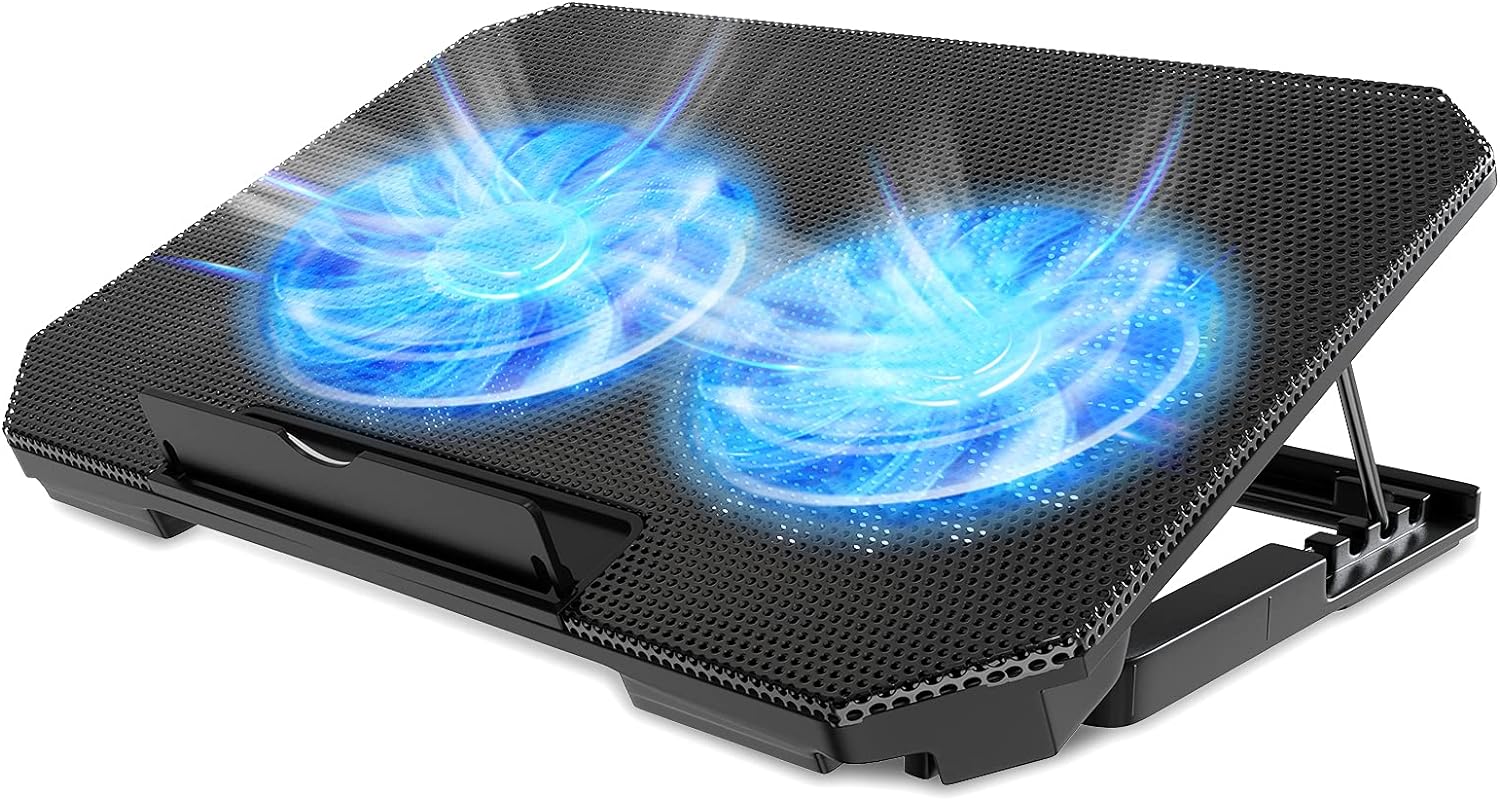
The LIENS adjustable-height cooling pad centers its design around two oversized 5.1-inch fans, notably larger than the typical 4-inch units found in competing models. This dual-fan configuration pushes substantial airflow across the laptop base while maintaining quieter operation than high-speed smaller fans running at equivalent CFM outputs. The model accommodates 12 to 15.6-inch laptops, making it particularly well-suited for standard work notebooks and mid-sized gaming machines that don’t require the extreme cooling capacity of desktop-replacement behemoths.
What distinguishes this pad is its emphasis on ergonomic positioning through adjustable height settings. The multi-angle stand mechanism lets users tilt their laptop to reduce neck strain during extended sessions, effectively serving dual purposes: improved thermal management and better workspace posture. This combination appeals to remote workers and students who spend hours at a desk and experience both performance throttling and physical discomfort from flat laptop placement.
The inclusion of two USB port pass-throughs addresses a practical frustration, the cooling pad’s own USB power connection doesn’t cost you a port. You can daisy-chain peripherals without hunting for an external hub. With 6,611 customer ratings averaging 4 out of 5 stars, the LIENS model has earned consistent user approval. It currently shows in-stock availability, positioning it as a reliable middle-ground option for users prioritizing adjustability and fan size over maximum cooling power or ultra-slim portability.
Razer Laptop Cooling Pad Adaptive Smart

The Razer Laptop Cooling Pad Adaptive Smart distinguishes itself through intelligent thermal management rather than raw fan count. Its core feature is an automatic temperature-sensing system that adjusts fan speed in real time based on your laptop’s heat output, eliminating the need for manual intervention. When the system detects rising temperatures during intensive tasks like rendering or gaming, it ramps up airflow; during lighter workloads, it scales back to reduce noise and power consumption.
This adaptive approach appeals to users who want set-and-forget operation instead of constantly tweaking fan speed dials. The technology works particularly well for laptops with variable thermal demands, such as content creation machines that alternate between idle periods and intensive bursts. Rather than running fans at full speed continuously (wasting energy and creating unnecessary noise), or keeping them low and risking thermal throttling during sudden spikes, the smart system finds the middle ground automatically.
With 607 customer ratings averaging 4.2 out of 5, the Razer pad demonstrates solid real-world reliability. Users typically praise the hands-off convenience and the quieter operation during routine tasks. The trade-off is a higher price point than basic fixed-speed models, which makes sense only if you value automation over manual control. If your workflow involves unpredictable thermal patterns and you’d rather not monitor temperatures yourself, the intelligent fan control justifies the investment. For users who prefer direct control or run consistent workloads where a single fan speed suffices, simpler models offer better value.
TECKNET Laptop Cooling Pad with 9 USB Fans Laptop

The TECKNET 9-fan model represents the aggressive end of the cooling pad spectrum, prioritizing maximum airflow over subtlety. Nine individual fans create a substantial cooling surface that covers a 12-17.3 inch laptop’s entire base, eliminating the hot-spot problem inherent in single or dual-fan designs. Each fan operates independently on a grid layout, directing focused air columns upward through the mesh platform where your laptop’s intake vents sit.
Five discrete height settings transform this pad from a flat desk surface to a steep typing angle, letting you choose between aggressive cooling elevation or a lower profile for cramped desk spaces. The height mechanism locks firmly at each level rather than relying on friction hinges that sag under weight. Variable fan speed control adjusts the collective output from whisper-quiet to a noticeable hum, giving you manual override when thermal loads spike during rendering tasks or extended gaming sessions.
Dual USB ports preserve your laptop’s connectivity budget. One powers the pad itself while the second acts as pass-through, so you don’t sacrifice a USB slot to gain cooling. Blue LED lighting traces the fan outlines, purely cosmetic but aligned with gaming aesthetics. The integrated phone holder extends from one side, positioning your device within glance distance during streams or reference workflows.
This configuration suits users running thermally demanding workloads on larger laptops where single-fan solutions prove inadequate. The 16,855 customer ratings average 4 out of 5, and current stock availability confirms ongoing production. If your laptop idles warm and throttles under sustained loads, this multi-fan approach delivers measurable temperature reductions at the cost of desk footprint and audible fan noise.
TECKNET Laptop Cooling Pad Portable

Where simplicity and portability matter more than maximum fan count, TECKNET’s slim cooling pad presents a leaner alternative to the company’s 9-fan powerhouse. This streamlined version supports the same 12-17 inch laptop range but strips away the extras, no LED lighting, no phone holder, no excessive array of fans, leaving just the essentials for users who need cooling without the bulk.
The design prioritizes a thin profile that slips into a laptop bag without adding significant weight or thickness. While the 9-fan model delivers heavy-duty cooling for gaming sessions, this portable variant suits office workers, students, and frequent travelers who need moderate thermal relief during spreadsheet work, video calls, or web browsing rather than GPU-intensive tasks. The trade-off is clear: you sacrifice some cooling power for a pad that doesn’t anchor you to a desk.
With over 3,000 customer ratings averaging four out of five stars, the feedback centers on exactly what you’d expect, users appreciate the portability and quiet operation but acknowledge it won’t match multi-fan setups in raw temperature drops. The rating distribution suggests it meets expectations for light to moderate use rather than promising gaming-level performance.
This is the cooling pad to choose when your laptop runs warm during typical productivity work and you move between locations throughout the day. If your thermal issues stem from sustained high-CPU tasks or gaming, the 9-fan model remains the better pick. But for portability-first users accepting modest cooling gains, this slim design delivers what matters without the extras that add weight and complexity.
KLIM Wind Laptop Cooling Pad

The KLIM Wind’s commercial success, over 500,000 units sold, stems from balancing performance with universal compatibility. Its four-fan configuration uses a diamond-pattern layout that spreads airflow across a wider surface area than centred designs, making it effective for laptops where intake vents sit near the edges. The fans operate at variable speeds, letting you dial down the noise during light tasks or ramp up cooling when running demanding applications.
Cross-platform compatibility extends beyond typical PC and Mac use. The USB-powered design works with gaming consoles like PS5 and PS4, useful if you’ve stacked a console in an entertainment center with restricted airflow. The two USB pass-through ports preserve connectivity, you power the pad from one laptop port but retain both slots for peripherals, avoiding the frustration of losing USB access.
With 4 out of 5 stars across 43,431 customer ratings, user feedback consistently highlights reliability and consistent cooling performance rather than cutting-edge features. The pad fits 11 to 17-inch laptops without requiring size-specific models, simplifying the purchase decision for households with multiple devices.
This model suits users who want proven thermal management without navigating complex feature sets or adaptive technology. The combination of established track record, broad device compatibility, and straightforward fan control makes it a practical choice when you need dependable cooling that works across your entire device ecosystem rather than optimizing for a single laptop.
Recommendations: Matching Your Cooling Pad to Your Needs
Match your cooling pad to your actual usage pattern rather than defaulting to “more fans equals better.” A frequent traveler working on a 13-inch ultrabook has radically different needs than someone running a 17-inch gaming rig at max settings for hours.
For travel and portability the TECKNET Portable or HAVIT HV-F2056 deliver adequate cooling without bulk. Both weigh under a kilogram, slip into laptop bags easily, and run silently enough for coffee shops or shared workspaces. Choose these if you move between locations daily and your laptop runs standard office applications rather than GPU-intensive tasks.
Gaming laptops with high thermal loads demand the TECKNET 9-fan model or similar multi-fan configurations. The larger fan array moves significantly more air across bottom vents where gaming laptops typically exhaust heat. The five-level height adjustment also matters here, elevating the rear intake by 3-4 inches creates stronger passive airflow underneath, measurably reducing CPU and GPU temperatures during sustained gaming sessions.
Budget-conscious buyers should focus on the HAVIT or LIENS models. Both cost under £30 yet provide measurable temperature drops of 8-12°C for typical laptops. Skip LED lighting and phone holders; they add cost without thermal benefit. Verify the fan diameter matches your laptop’s vent spacing before purchasing.
Consider these scenario-specific matches:
– Travel/portability: HAVIT HV-F2056 or TECKNET Portable for lightweight, quiet operation
– Gaming laptops: TECKNET 9-fan for maximum airflow and aggressive cooling
– Budget-conscious: LIENS or HAVIT models offering core functionality without premium features
– Ergonomic desk setups: LIENS or TECKNET 9-fan with multiple height adjustments for proper screen positioning
– Smart/automated cooling: Razer Adaptive Smart for temperature-responsive fan control without manual intervention
For ergonomic desk work prioritize adjustability over raw cooling power. The LIENS model’s dual large fans cool adequately while its height settings let you position the screen at eye level, reducing neck strain during eight-hour workdays. This matters more than shaving an extra 2°C off temperatures if your laptop isn’t thermal throttling.
The Razer Adaptive Smart suits users who want set-and-forget operation. Its sensors automatically ramp fan speed based on detected heat, eliminating manual adjustments. Worth the premium if you dislike tweaking settings but still want optimized cooling across varying workloads.
Measure your laptop’s actual vent locations before committing. A twelve-fan pad won’t help if those fans blow air at solid plastic rather than intake grilles.
Common Mistakes to Avoid When Choosing a Cooling Pad
Ignoring Your Laptop’s Actual Vent Location
Many users buy a cooling pad based on fan count or size compatibility alone, then wonder why temperatures barely improve. The problem is simple: laptop vents aren’t universal. Some laptops pull air through bottom intake vents and exhaust through side or rear grilles. Others use the opposite configuration. If your laptop’s intake vents sit along the sides but your cooling pad blows air up through the centre, you’re just circulating air around the chassis instead of feeding it into the thermal system.
Before buying, flip your laptop over and identify where air actually enters. Check the manufacturer’s specs or user manual if vent locations aren’t obvious. Then choose a cooling pad whose fans align with those intake zones. A pad with adjustable or widespread fan placement gives you flexibility, but even the most powerful multi-fan setup wastes its CFM rating if the airflow misses your laptop’s entry points entirely.
Overestimating Noise Tolerance
High-CFM fans push more air, but they spin faster and create noticeable noise. If you work in a library, share an office, or record audio, a six-fan cooler running at full speed can sound like a small jet engine. Check decibel ratings before buying, anything above 30 dB becomes intrusive during video calls or focused tasks. Many multi-fan pads lack granular speed control, forcing you to choose between inadequate cooling at low settings or disruptive noise at high settings. Test the noise level in reviews filmed in quiet rooms, not marketing videos with background music masking fan hum.
Choosing Features Over Fundamentals
RGB lighting, phone holders, and built-in speakers look appealing in product photos, but they don’t cool your laptop. Manufacturers add these extras to justify higher prices and stand out in crowded marketplaces. Before you pay a premium for aesthetic additions, check the cooling pad’s actual thermal specifications: CFM rating, fan size, and airflow design matter far more than glowing LEDs. A bare-bones cooler with strong fans and proper vent alignment will always outperform a feature-packed model with weak airflow. Focus on cooling performance first, then consider extras only if the thermal fundamentals already meet your needs.
Frequently Asked Questions
Do cooling pads actually work?
Yes, cooling pads demonstrably lower laptop temperatures by improving airflow beneath the device. Most users see a 5-15°C reduction in CPU/GPU temperatures during intensive tasks, which helps prevent thermal throttling and extends component lifespan.
Can a cooling pad damage my laptop?
No, properly designed cooling pads cannot damage your laptop. They simply enhance existing airflow without altering internal components or power delivery. The only risk is using an unstable pad that could allow the laptop to slide, which is why sturdy construction with grip surfaces matters.
Do I need a cooling pad for everyday browsing and office work?
Most laptops don’t need a cooling pad for light tasks like web browsing, email, and document editing. Cooling pads become valuable when you run demanding applications, games, video editing software, or 3D rendering that generate sustained heat loads.
How can I tell if my laptop is overheating?
Warning signs include loud fan noise running constantly, the bottom surface becoming uncomfortably hot to touch, sudden performance drops during tasks, or unexpected shutdowns. You can confirm with temperature monitoring software, where sustained CPU temps above 85-90°C indicate a cooling problem.
The answers above address the most common concerns buyers face when evaluating whether a cooling pad fits their situation. Temperature reduction varies by laptop model and cooling pad quality, but the range given reflects real-world performance across typical setups. If you’re experiencing any of the overheating symptoms mentioned, a cooling pad addresses the root cause rather than just masking the problem with increased fan speeds.
Choosing the right laptop cooling pad comes down to three fundamental questions: What size is your laptop? How intensive is your workload? How often will you move the setup? A 17-inch gaming laptop running intensive sessions needs a different solution than a 13-inch ultrabook used for web browsing. Match the cooling pad’s fan placement to your laptop’s actual vent locations, prioritize CFM and airflow design over cosmetic features, and be realistic about your noise tolerance and desk space.
Before clicking “buy,” identify your specific thermal challenge. Does your laptop throttle during gaming marathons, or does it just run warm during video calls? Measure your laptop’s dimensions, check where its vents are located, and consider whether you need travel portability or maximum stationary cooling power. The models we’ve covered span that entire spectrum, from slim portable options to heavy-duty multi-fan rigs. Your thermal problem dictates the solution, not marketing claims or flashy LEDs.
Editorial disclosure: retail links in this article may pay us a commission. This does not influence our coverage. As an Amazon Associate I earn from qualifying purchases.